Recording
What becomes a step
Every click becomes a step. The screenshot is taken the moment you press, before the page
reacts, so the step shows what you clicked rather than what happened next. The target gets
viewfinder brackets and a numbered badge; if the target is large, a small reticle marks the
exact click point too. The title is read off the element: Click the "New project" button.
Typing becomes a step when you stop typing, not when you leave the field:
Type "ada@example.com" into the Work email field. An I-beam marks where the text ends.
Pressing Enter to submit is noted in the title.
Choosing from a dropdown reads Select "Canada" from the Region dropdown.
Clicking a field and then filling it in is one instruction, not two, so the typing folds into the click that focused the field. You get one step, and its screenshot is the later one that actually shows the value.
Passwords and secrets
Password fields are recorded as a step but never as a value: the step reads
Enter your password into the Password field, and the typed characters are never stored. The
same applies to fields the page marks as card number, security code, one-time code, or new or
current password, and to fields whose name reads like a password, token, secret or API key.
Once a field has been treated as secret it stays secret for the life of the page, so a "show password" toggle does not leak the value.
Everything you type into an ordinary field is stored and ends up in the step title. If you type something sensitive into a plain text box, edit or delete that step before you send.
The live panel
When you start recording, a panel opens beside the page and fills in as you work: each click lands as a card the moment you make it, and what you type appears in a live row before it becomes a step. You can rename a step, add a note, fix or redact a captured value, delete a step and undo that, all without leaving the page.
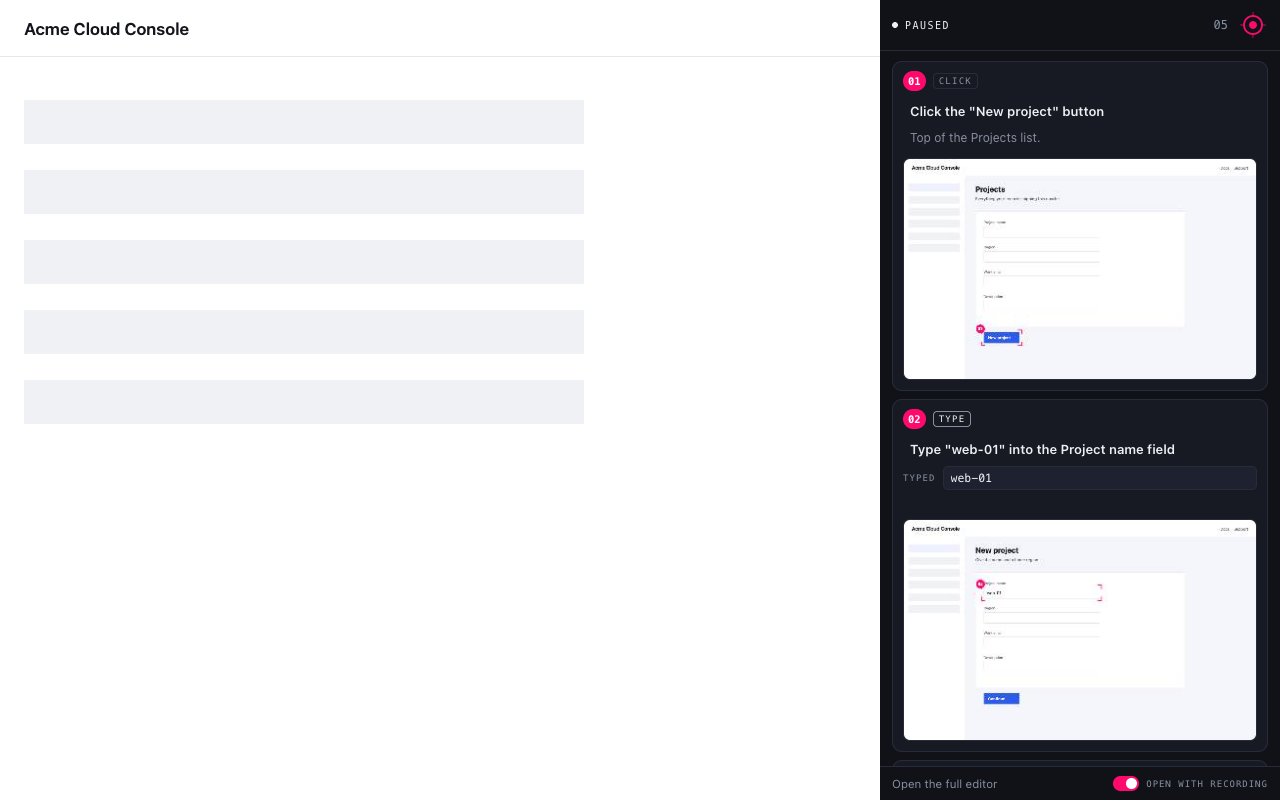
The panel is a browser side panel rather than something drawn on the page because a screenshot captures the tab, and a panel painted into the page would appear in every picture. Chrome decides which side it opens on: right-click the panel and choose Show on left to move it.
The Live panel switch in the popup turns automatic opening off. You can still open it from Chrome's side-panel menu.
What it cannot see
chrome://pages, the Chrome Web Store and other extensions' pages. Chrome blocks extensions there, so clicks on them are not recorded.- Anything off-screen. Screenshots are the visible viewport, not the full page.
- Native UI the page does not own: an open
<select>list, a file picker, a print dialog. - Keyboard shortcuts. Text entry is recorded; Ctrl+S is not.
Recording cleanly
- One action every couple of seconds. Chrome allows about two screenshots per second; a burst of fast clicks is captured slightly late and may show the page mid-reaction.
- Set the window size first. Screenshots are the size of the tab. A consistent size makes a consistent lab.
- Close what you do not want in the picture before you start: notifications, other people's names, anything you would not want a learner to see.
- Record a flow, not a session. Stop when the task is done. It is easier to record a second capture than to trim a long one.
- Start a new capture from the popup for each guide. Captures live side by side in the editor's library, so nothing is lost.