Editing the guide
Open the editor from the popup (Review & export), from the live panel (Open the full editor), or by clicking any screenshot in the panel. The editor is where a recording becomes a document. Edits save as you make them.
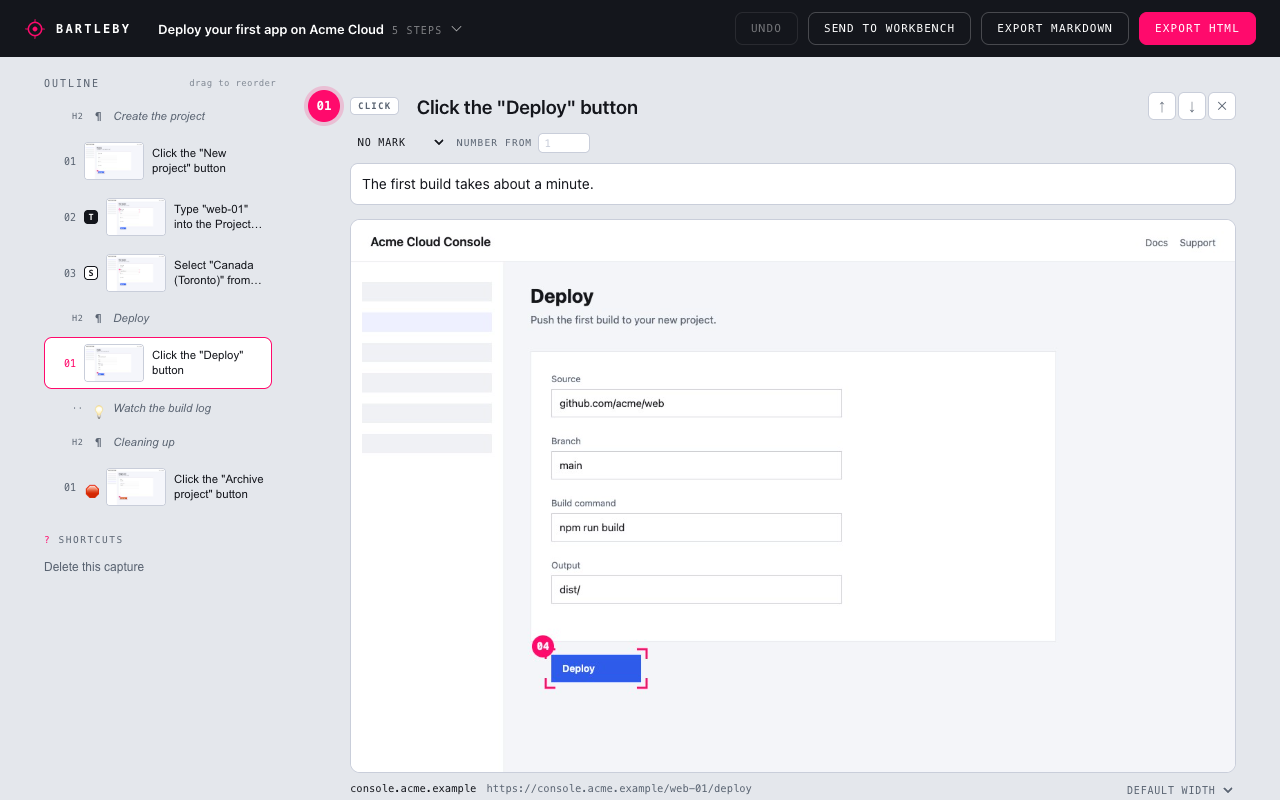
Steps
- Rename a step by clicking its title. The default title is read off the page and is usually right, but "Click the btn-primary button" is worth fixing.
- Add a note under any step. Notes are Markdown: bold, links, lists and code all work.
- Reorder by dragging in the outline on the left. Numbering follows.
- Delete a step with the × in its corner. Undo is offered for a moment afterwards.
- Correct or redact a value. If a step captured something you do not want in the guide, edit the value or redact it; the screenshot's I-beam and the title are rewritten to match.
Marks
Mark a step as Danger, Warning, Tip, Note or Done from the dropdown under its title. A mark colours the step's badge in the guide and, when sent to Author Workbench, becomes a coloured callout with the step's note as its body. Use Danger for the step that deletes something.
Sections
Between steps you can insert:
- Headings, to group steps. The level is yours to pick; a heading's steps can restart numbering at 1 (the checkbox beside it), so each section counts on its own.
- Text, for prose between steps: context, what to expect, what to check.
- Callouts, for a tip or warning that is not attached to a particular step.
- Images, for a picture you took some other way.
Sections are moved and deleted like steps.
The document as a whole
Above the first step:
- Title. Click it to rename. It becomes the lab's name when you send it.
- Contents adds a table of contents built from your headings.
- Intro and Conclusion add a paragraph before the first step and after the last.
- Images sets a default width for screenshots, and each step can override it. Narrowed images are sized in pixels so they survive the trip to Author Workbench.
- Numbers picks the numbering style:
1, 2, 3straight through, or1.1, 1.2with the section number in front.
Several captures
The switcher in the top bar names the current capture. Click it for the library: switch to another, start a new empty one, delete one, or import an old Scribe lab.
Import from Scribe reads the Markdown of a lab written with the old Scribe pipeline and turns it back into steps with their screenshots, so it can be edited here and re-sent. It also reads Bartleby's own exports and labs pulled back out of Author Workbench.